Tuesday, 2 January 2018

SQL Services Accounts and Permissions

SQL Services Accounts

All SQL services will use a restricted non privileged domain or local account, user accounts are not allowed to run SQL Services.  SQL Service accounts will not be granted local logon privileges or will not allow interactive logon privilege.  Run each separate SQL Server service under a different Windows domain account.   A separate Service account should be created for the SQL Server Agent and SQL Server services.  All SQL Server logins will be documented and have owners identified.  This includes SQL Logins, Windows Logins, service accounts and sa (sysadmin) logins. 

What are the Permissions required for SQL Server Service Account

Grant the SQL Server service accounts the following rights (below rights are assigned by default):

  • Grant    Log on as a service 
  • Grant    Act as part of the operating system
  • Grant    Log on as a batch job
  • Grant    Replace a process-level token
  • Grant    Bypass traverse checking
  • Grant    Adjust memory quotas for a process 
  • Grant    Permission to start SQL Server Active Directory Helper
  • Grant    Permission to start SQL Writer
  • Grant    Permission to read the Remote Procedure Call service
  • Deny    Log on locally (if using a local account)

What are the Permissions required for SQL Server Agent Service Account 

A separate Service account should be created for the SQL Server Agent and SQL Server services.   

Grant the SQL Server Agent service accounts the following rights (below rights are assigned by default):

  • Log on as a service
  • Log on as a batch job
  • Replace a process-level token
  • Bypass traverse checking
  • Adjust memory quotas for a process

Integration Service Account Permissions

Grant the Integration Services service accounts the following rights (below rights are assigned by default):

  • Log on as a service
  • Permission to write to the application event log
  • Bypass traverse checking
  • Create global objects
  • Impersonate a client after authentication 

Job Account Permissions

Each job role should utilize a domain service account created solely for that role. It shall only be granted the minimum permissions necessary to perform that job or job step.  i.e. SQL Server Agent Account.

Monday, 1 January 2018

Configuring and setting up SQL database mail


Configuring and setting up SQL database mail

Database Mail is an enterprise solution for sending e-mail messages from the SQL Server Database Engine. Using Database Mail, your database applications can send e-mail messages to users. Database Mail is not active by default. To use Database Mail, you must explicitly enable Database Mail by using either the Database Mail Configuration Wizard or sp_configure stored procedure. Once it has been enabled, you can configure SQL mail using either GUI (Wizard) or by script.

After the Account and the Profile are created successfully, we need to configure the Database Mail. To configure it, we need to enable the Database Mail XPs parameter through the sp_configure stored procedure, as shown here:

sp_CONFIGURE -- shows the options for server properties (about 17)
GO
sp_CONFIGURE 'Show Advanced', 1 -- shows the options for server properties (about 69)
GO
RECONFIGURE
GO
sp_CONFIGURE 'Database Mail XPs',1 -- configure the database mail
GO
RECONFIGURE
GO
--------------------------------------------------
sp_CONFIGURE 'Show Advanced', 0 -- set the options off for server properties
GO
RECONFIGURE
GO

Setting up SQL database mail via wizard:

Database Mail Configuration through scripts
When you need to setup Database Mail on dozens of SQL Server instances, rather than perform this tedious task using the SSMS GUI, use the following script that saves me a lot of time. Below is the template. The sysmail_add_account_sp @username and @password parameters might be required depending on your SMTP server authentication and you will of course need to customize the mail server name and addresses for your environment.

-- 1. Enable Database Mail for this instance

EXECUTE sp_configure 'show advanced', 1;
RECONFIGURE;
EXECUTE sp_configure 'Database Mail XPs',1;
RECONFIGURE;
GO

-- 2. Create a Database Mail account

EXECUTE msdb.dbo.sysmail_add_account_sp
@account_name = 'Primary Account',
@description = 'Account used by all mail profiles.',
@email_address = 'myaddress@mydomain.com', -- enter your email address here
@replyto_address = 'myaddress@mydomain.com', -- enter your email address here
@display_name = 'Database Mail',
@mailserver_name = 'mail.mydomain.com'; -- enter your server name here

--3. Create a Database Mail profile

EXECUTE msdb.dbo.sysmail_add_profile_sp
@profile_name = 'Default Public Profile',
@description = 'Default public profile for all users';

-- 4.Add the account to the profile

EXECUTE msdb.dbo.sysmail_add_profileaccount_sp
@profile_name = 'Default Public Profile',
@account_name = 'Primary Account',
@sequence_number = 1;

-- 5.Grant access to the profile to all msdb database users

EXECUTE msdb.dbo.sysmail_add_principalprofile_sp
@profile_name = 'Default Public Profile',
@principal_name = 'public',
@is_default = 1;
GO

--6.send a test email

EXECUTE msdb.dbo.sp_send_dbmail
@subject = 'Test Database Mail Message',
@recipients = 'testaddress@mydomain.com', -- enter your email address here
@query = 'SELECT @@SERVERNAME';
GO

Database Mail keeps copies of outgoing e-mail messages and other information about mail and displays them in msdb database using the following scripts:

use msdb
go
SELECT * FROM sysmail_server
SELECT * FROM sysmail_allitems
SELECT * FROM sysmail_sentitems
SELECT * FROM sysmail_unsentitems
SELECT * FROM sysmail_faileditems
SELECT * FROM sysmail_mailitems
SELECT * FROM sysmail_log


Database Level and Server Level Roles

Creating SQL Roles

What are SQL Roles – Predefined collection of objects and permissions?
Roles allow the dba to manage permissions more efficiently
We first create roles and then assign permissions to roles, and then add logins to the roles.

SQL Server supports four types of roles

•                    Fixed database roles - These roles already have pre – defined set of permissions
•                    User-defined database roles - These roles have their set of permissions defined by the sa
•                    Fixed server roles – These roles already have pre – defined set of permissions
•                    User-defined server roles – These roles have their set of permissions defined by the sa

The following shows the fixed database-level roles and their capabilities. These roles exist in all databases.

SQL Database-Level Roles

db_owner      
Members of the db_owner fixed database role can perform all configuration and maintenance activities on the database, and can also drop the database.
db_securityadmin    
Members of the db_securityadmin fixed database role can modify role membership and manage permissions (be careful)
db_accessadmin       
Members of the db_accessadmin fixed database role can add or remove access to the database for Windows logins, Windows groups, and SQL Server logins.
db_backupoperator 
Members of the db_backupoperator fixed database role can back up the database.
db_ddladmin
Members of the db_ddladmin fixed database role can run any Data Definition Language (DDL) command in a database.
db_datawriter          
Members of the db_datawriter fixed database role can add, delete, or change data in all user tables.
db_datareader          
Members of the db_datareader fixed database role can read all data from all user tables.
db_denydatawriter  
Members of the db_denydatawriter fixed database role cannot add, modify, or delete any data in the user tables within a database.
db_denydatareader 

Members of the db_denydatareader fixed database role cannot read any data in the user tables within a database.

SQL Server - Level Roles

The Server Roles page lists all possible roles that can be assigned to the new login.
bulkadmin
Members of the bulkadmin fixed server role can run the BULK INSERT statement.
dbcreator
Members of the dbcreator fixed server role can create, alter, drop, and restore any database.
diskadmin
Members of the diskadmin fixed server role can manage disk files.
processadmin
Members of the processadmin fixed server role can terminate processes running in an instance of the Database Engine.
public
All SQL Server users, groups, and roles belong to the public fixed server role by default.
securityadmin
Members of the securityadmin fixed server role manage logins and their properties. They can GRANT, DENY, and REVOKE server-level permissions. They can also GRANT, DENY, and REVOKE database-level permissions. Additionally, they can reset passwords for SQL Server logins.
serveradmin
Members of the serveradmin fixed server role can change server-wide configuration options and shut down the server.
setupadmin
Members of the setupadmin fixed server role can add and remove linked servers, and they can execute some system stored procedures.

Sysadmin  (Can do anything and everything)
Members of the sysadmin fixed server role can perform any activity in the Database Engine.

Shrinking a Database


Shrinking a Database

     The primary purpose of shrinking a database (or individual files) is to reclaim the SPACE by removing unused pages when a file no longer needs to be as large as it once was; shrinking the file may then become necessary, but as we will demonstrate, this process is highly discouraged and is an extremely poor practice in the production database environment.


Things to note

  • ·         Both data and transaction log files can be shrunk individually or   collectively
  • ·        when using the DBCC SHRINKDATABASE statement, you cannot shrink a   whole database to be smaller than its original size. However, you can   shrink the individual database files to a smaller size than their initial size   by using the DBCC SHRINKFILE statement.
  • ·       The size of the virtual log files within the log determines the possible   reductions in size.
  • ·       Shrinking causes massive fragmentation and will just result in the data file growing again next time data gets added.  When that happens, the entire system will slow down as the file is expanded.


Automatic Database Shrinking

     When the AUTO_SHRINK database option has been set to ON, the Database Engine automatically shrinks databases that have free space. By default, it is set to OFF. Leave it as is.

Database Shrinking Commands

·         DBCC SHRINKDATABASE (ShrinkDB, 10)
·         DBCC SHRINKFILE (ShrinkDB, 10)

Best Practices

  • ·         Size the database accordingly so as to prevent shrinking and expanding the database
  • ·         When unused space is created due to dropping of tables, shrinking of the database may be needed - but rarely
  • ·         Don't constantly shrink the database as it will grow again
  • ·         When you shrink a database, the indexes on tables are not preserved and as such will causes massive fragmentation and will have to be rebuilt
  • ·         Shrinking the log file may be necessary if your log has grown out of control however, shrinking the log should be rare also
  • ·         Regular maintenance plans should never have shrink database job
  • ·         Other issues that shrinking causes are lot of I/O, of CPU usage, and transaction log gets larger – as everything it does is fully logged.


The following points will illustrate that shrinking a database will

  •  Causes pages being moved from the front of file to the end
  •  It will cause massive fragmentation
  •  It will not reduce the size of the data file, but actually increase it
  •  That shrinking a database will cause unnecessary I/O hits
  •  That shrinking a database was a futile endeavor because of poor planning     regarding sizing of database
  •  And that shrinking a database should be very rarely done


Restore Database

         
           What is Restore? What are the recovery states? Explain Each?

Restore means recover the data from backups. There are three recovery states for Restore.    

  •  With Recovery 
  •  With No-Recovery 
  •  Standby

  •   With Recovery:- With Recovery, Database will comes to Online and get ready to use Database. Generally while restoring recent (last) T.Log we can choose with recovery option.
  •    With No-Recovery:- With No-Recovery Databases will comes to Offline and we can’t access DB. Generally except recent log we can choose With No-Recovery option.
  •    Standby:- With Standby, Databases will comes to Offline and users can have read only access. Generally except recent log we can choose Standby option for Read only access.

Restore Commands:

• RESTORE DATABASE - Allows us to restore a full, differential, file or filegroup backup


• RESTORE LOG - Allows us to restore a transaction log backup


           What are the common scenarios to Restoring the Data?

  •     To restore the lost and corrupted data after a system failure
  •   To restore a database onto a development system for user by application developers while developing and testing new code.
  •    To restore a database onto a test system to load test applications and database features.
  •    To restore a database on separate server as a read-only database to perform queries for reports.


                                                   Restore Strategy?

  •         First restore recent last full backup
  •         Then restore latest Diff. backup
  •         Then restore all Transaction Log backups.


Recovery models


             What is Recovery Model? Benefits of Recovery Models?

A recovery model is a Database property that control the basic behavior of the backup and restore operations for a DB. Recovery models are designed to control transaction log maintenance.

There are three recovery models that can be set on each user database which determines the types of backups you’ll use. 

To find the recovery model for databases use below command :

SELECT name, recovery_model_desc FROM sys.databases

We can set the recovery model via the GUI or use the ALTER DATABASE command :

  •          ALTER DATABASE SALES SET RECOVERY FULL
  •          ALTER DATABASE SALES SET RECOVERY SIMPLE
  •          ALTER DATABASE SALES SET RECOVERY BULK_LOGGED
FULL Recovery Model :


In full recovery you must run a log backup on a regular basis in order to reclaim log space. Recovery to a point in time is fully supported. For any production system that has data that is very important to the business,then the database recovery model should be full recovery .

BULK_LOGGED Recovery Model :

This recovery model reduces the size of the transaction log by minimally logging some operations such as bulk inserts. The problem is, recovery to a point in time is not possible with this recovery model because any minimally logged operations cannot be restored. This means that bulk-logged has all the overhead of Full Recovery, but effectively works like Simple Recovery. Unless you have specific needs or are willing to perform lots of extra backup operations, it’s not recommended to use bulk-logged recovery.

SIMPLE :

In this mode, the transaction are removed automatically at each checkpoint within the database and no log backups are possible. Recovery to a point in time is not possible and you could lose  data under simple recovery model. This Simple recovery model is not advised for production databases which are critical.

Backup History :

The following commands provides information of history to the backups in the MSDB database.

Use msdb
go
SELECT * FROM dbo.backupfile  - Contains one row for each data or log file that is backed up
SELECT * FROM dbo.backupmediafamily  - Contains one row for each media family
SELECT * FROM dbo.backupmediaset - Contains one row for each backup media set
SELECT * FROM dbo.backupset  - Contains a row for each backup set
SELECT * FROM dbo.backupfilegroup - Contains one row for each file group in a database at the time of backup


Backup File Information :

We have three basic commands to check backup file information which are  given below:


RESTORE VERIFYONLY FROM DISK = N'c:\backups\DBbak'
RESTORE HEADERONLY FROM DISK = N'c:\backups\DB.bak'
RESTORE FILELISTONLY FROM DISK = N'c:\backups\DB.bak'


Central Management Server

Introduction:
A SQL Server CMS ( 
Central Management Server ) is just a central repository that holds a list of managed servers. SQL Server 2008 SSMS introduces a new feature, Multiple Server Query Execution, in Query Editor. Centralize the management and administration of a number of SQL Server instances from a single source can allow the DBA to save significant time and effort. 

Some of the usages for adding the sql instances to CMS are listed below :

  •  Configure group of servers
  •  Generate report or document from multiple servers
  •  Analyze result from multiple servers
  •  Run any SQL query against multiple servers

Pre-requisite:
1. SQL Server 2008 for Registering Central Management Server
2. SQL Server 2008 or SQL Server 2005 or SQL Server 2000 servers other than the registered Central Management Server.

Now we will setup central management server using SSMS( SQL Server Management Studio ) in SQL Server 2008.

How to:
To register a central management server and run the query against all the registered servers follow the below steps.

1. Open the “Registered Servers” from the “View” Menu in the management studio of SQL server 2008.
2. Right click on the Central Management Servers and select “Register Central Management Server”

3. Then register the SQL 2008 server.

4. Create the sub folders and register the required servers.


5. To run a query against all the servers, right click on the central management server and select “New Query”
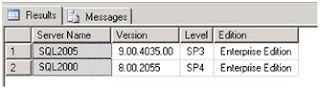
6. In the Query editor, type your query and execute it.
Select SERVERPROPERTY('ProductVersion') AS 'Version', 
SERVERPROPERTY('ProductLevel') AS 'Level', 
SERVERPROPERTY('Edition') AS 'Edition'

7. In the results, you can notice that for each record the respective server name will be displayed.


Note :  Centralize the management and administration of a number of SQL Server instances from a single source can allow     the SQL DBA person to save significant time and effort.  Also similar procedure to add latest SQL servers(2012,2014,2016).                                                                                  

PowerShell script to backup/restore procedures for Migrating each database

  Below is the PowerShell script that will implement backup/restore procedures for each database which we want to migrate to complete the mi...